
Viewing PDFs
All papers are shown in a pdf format. When opening a paper from the Table of Contents, it will be presented in a new browser window utilizing the pdf viewer of your browser. To return to the Table of Contents click on the browser tab to the immediate left of the new tab. The Table of Contents tab will be labelled “Table of Contents.”
Downloading PDFs
If you desire to download a PDF to your desktop, you may do this directly from your browser. Since downloading method varies from browser to browser, instructions have been provided for the most popular browsers below:
** Instructions may vary based on your current operating system and browser version. All browsers (with the exception of Internet Explorer) support simultaneously pressing Ctrl and "S" (Cmd and "S" for Apple computers) to save a file. **
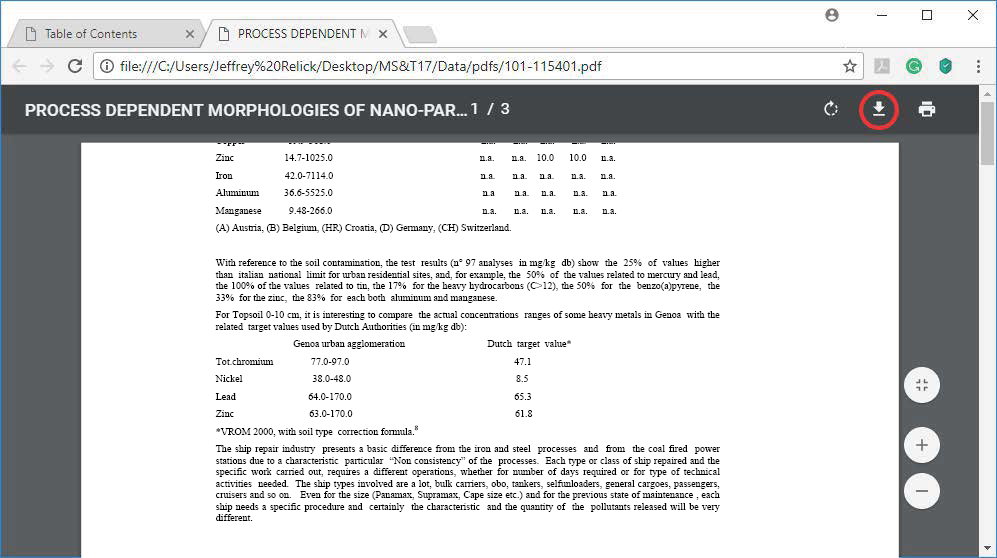
Chrome
- By moving your mouse toward the top of the browser or the lower right side, a dark gray menu bar will appear at the top of your browser window.
- Click the download button (circled in red below.)
- Re-name the PDF file (optional) and select the folder in which you would like it saved.
- Clicking "Save" will complete the process.
OR
- Right click on the PDF.
- Select "Save as . . ."
- Re-name the PDF file (optional) and select the folder in which you would like it saved.
- Click "Save" to complete the process.
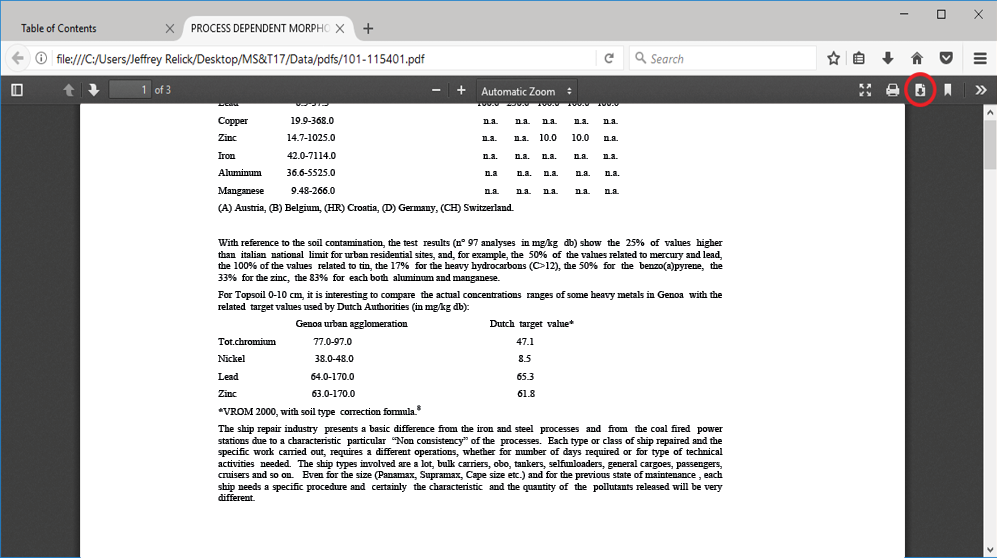
Firefox
- Click the download button (circled in red below) in the dark gray menu bar at the top of the browser window.
- Note the name of the file, then Select "Save File" and click "OK."
- Re-name the PDF file (optional) and select the folder in which you would like it saved.
- Document will be saved to the Download folder on your hard drive.
- To locate your Download folder, click on the Start menu (4 squares in the lower right-hand corner of your screen) and begin typing Download. Click on the file when it is located.
OR
- Right click on the PDF.
- Select "Save page as . . ."
- Re-name the PDF file (optional) and select the folder in which you would like it saved.
- Click "Save" to complete the process.
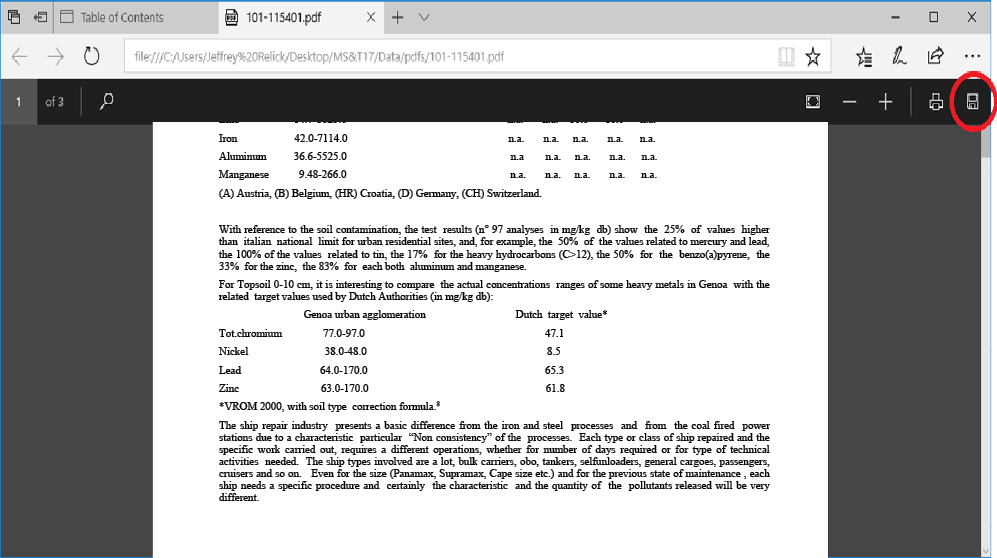
Edge
- Click anywhere in the browser window and a dark gray menu bar will appear at the top of the window.
- Click the "Save" button (circled in red below.)
- Re-name the PDF file (optional) and select the folder in which you would like it saved.
- Click "Save" to complete the process.
OR
- Right click on the PDF.
- Select "Save as . . ."
- Re-name the PDF file (optional) and select the folder in which you would like it saved.
- Click "Save" to complete the process.
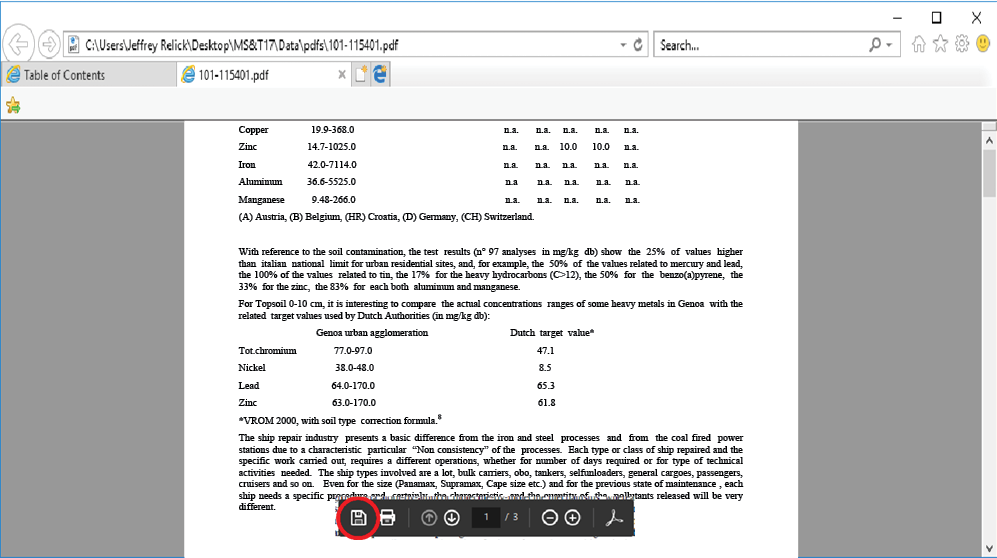
Internet Explorer
- Move your cuser anywhere within the browser window and a dark gray menu bar will appear at the bottom center of the window.
- Click the "Save" button (circled in red below.)
- Re-name the PDF file (optional) and select the folder in which you would like it saved.
- Click "Save" to complete the process.
Safari (Apple Computers)
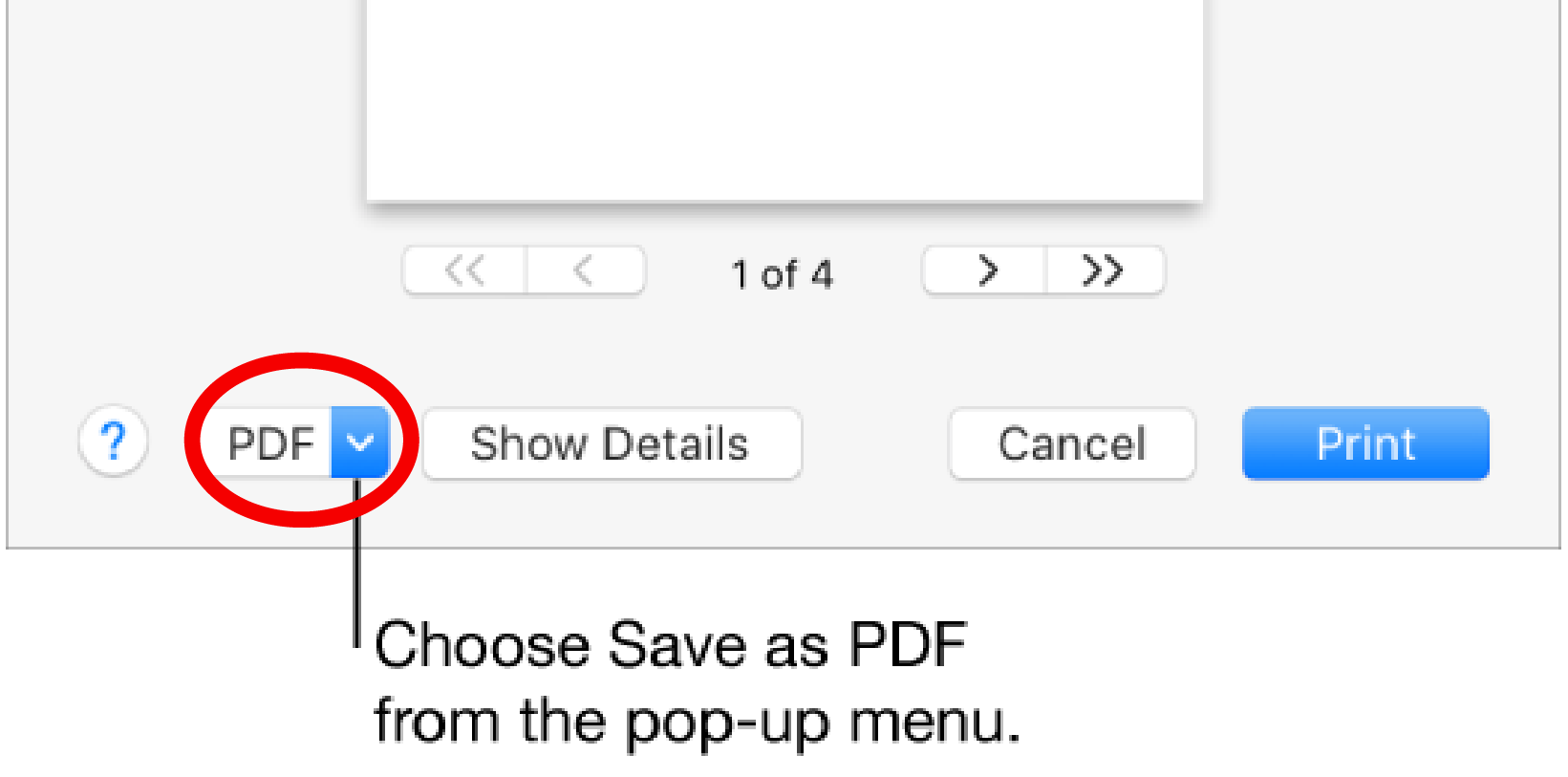
- Choose File > Print.
- Click the PDF pop-up menu, then choose Save as PDF.
- Choose a name and location for the PDF file. Enter the information you want in the Title, Author, Subject, and Keywords fields.
iPad or iPhone
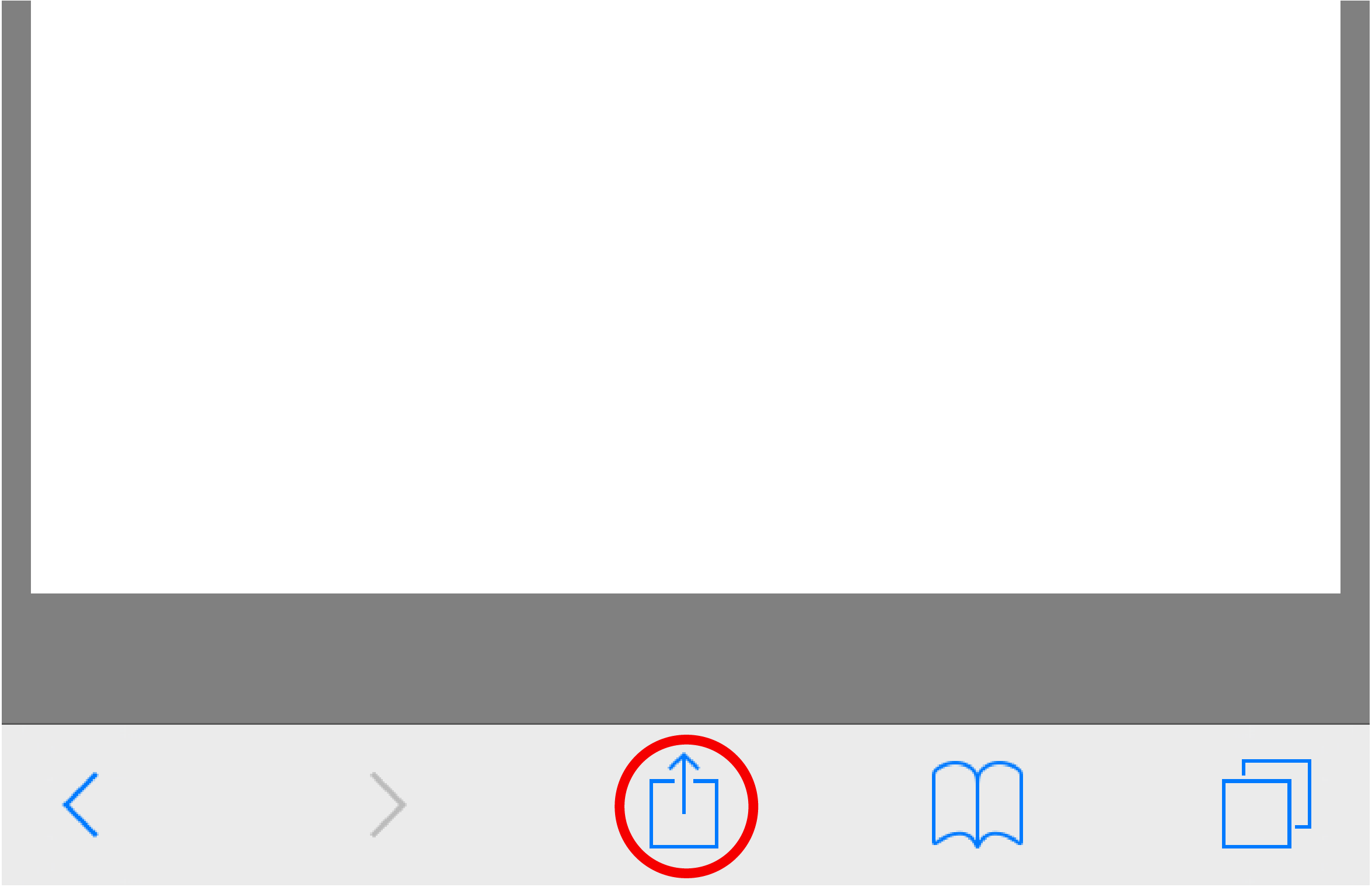
- Tap screen to bring up the options menu.
- Tap on the Share button (circled in red below.)
- Select "Save to iCloud."
- If you don’t see that option, swipe all the way to the right and tap on the More button.
- Now tap the Save button, or choose a different folder where to save the file, then tap Save.
Windows 10 supports zip natively, which means that you can just double-click the zipped folder to access its content — and open files. However, you always want to extract all the compressed files before using them.
If you don't unzip the files, you won't be able to edit and save the new content in the same document, and if you're trying to install or use a piece of software, the software won’t function properly and in most cases the installation process won't start.
There are at least three ways to extract files from a zipped folder:
Use the Extract All Wizard
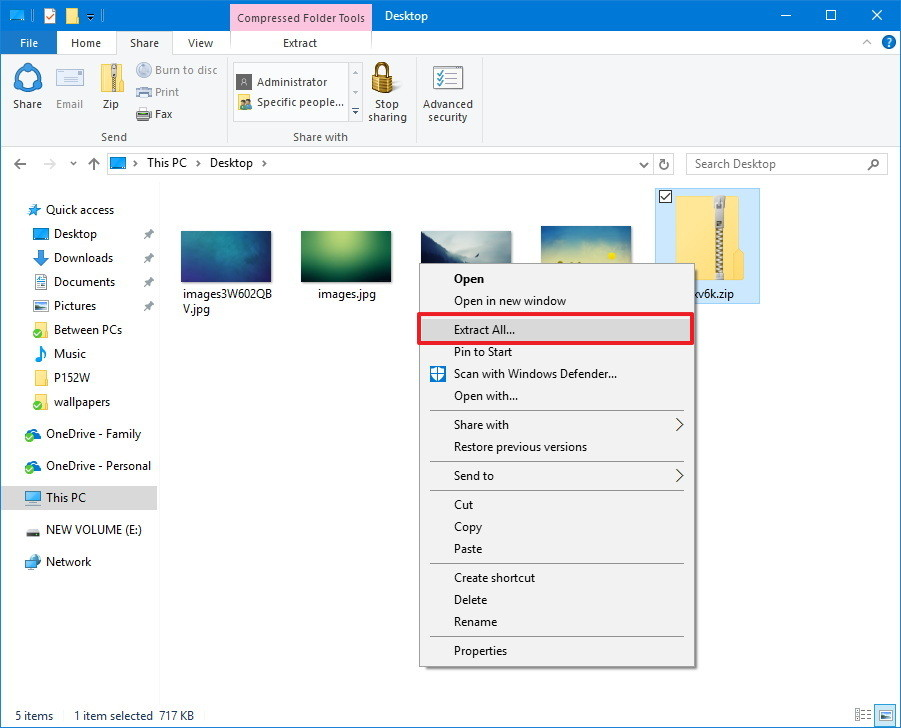
To extract all the files from a zipped folder, do the following:
- Right-click the compressed (zipped) folder.
- Select Extract All from the context menu.
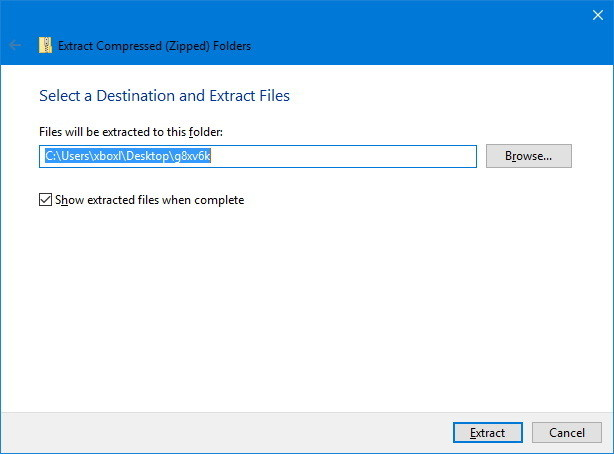
- By default, the compressed files will extract in the same location as the zipped folder, but you can click the Browse button to select an alternative location.
- Check the Show extracted files when complete option.
- Click Extract.
Using the File Explorer
To extract all or individual files from a zipped folder, do the following:
- Double-click the compressed (zipped) folder.
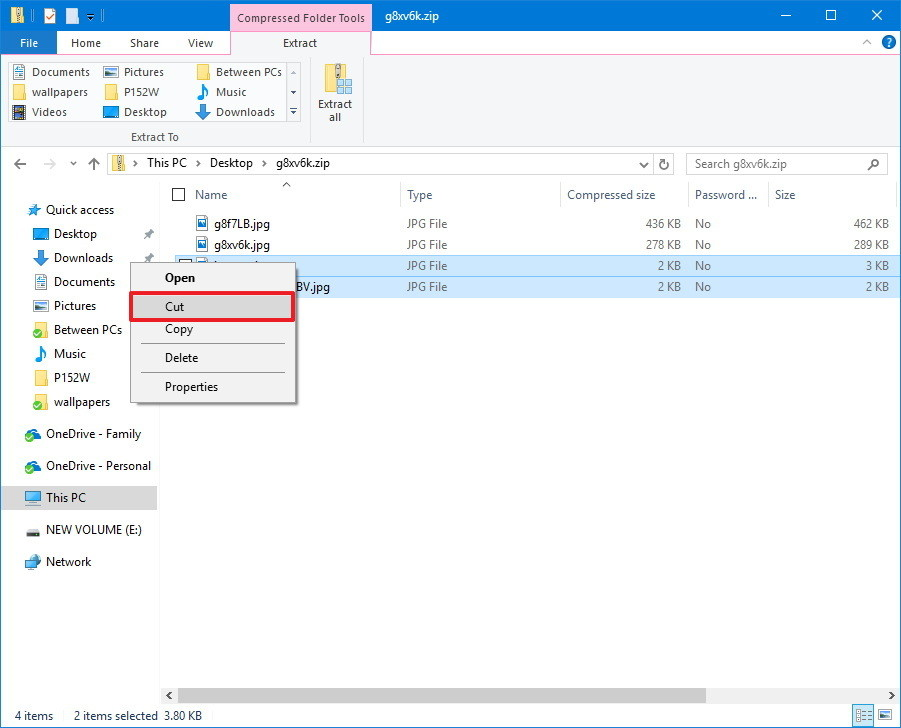
- Select the file or files you want to extract.
- Right-click your selection and click Cut.
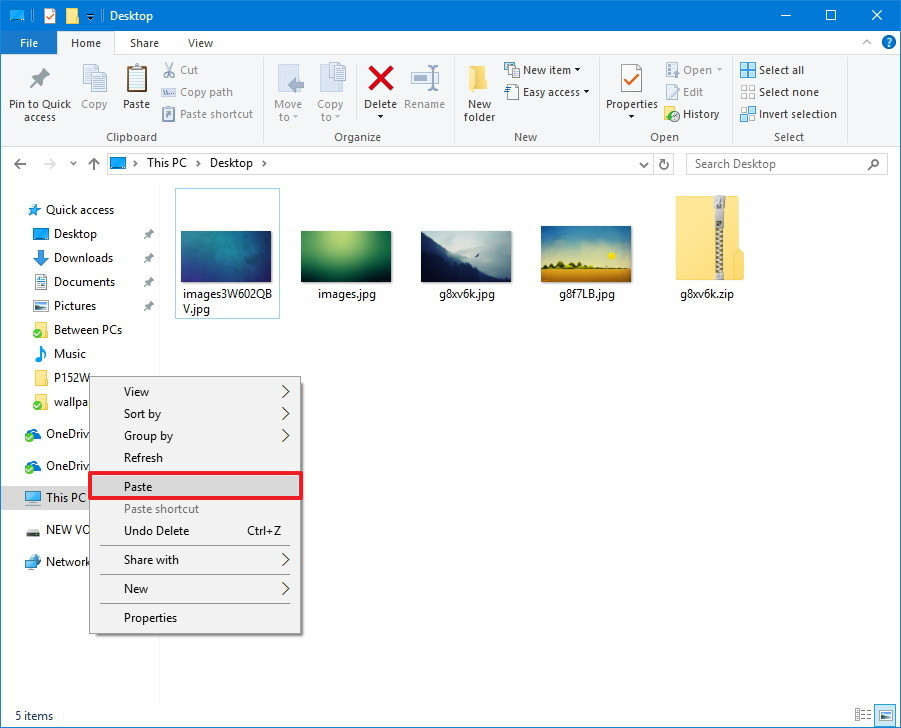
- Navigate to the location where you want to save the unzipped files.
- Right-click and select Paste.
Using the Extract Tab
Inside the zipped folder, you can:
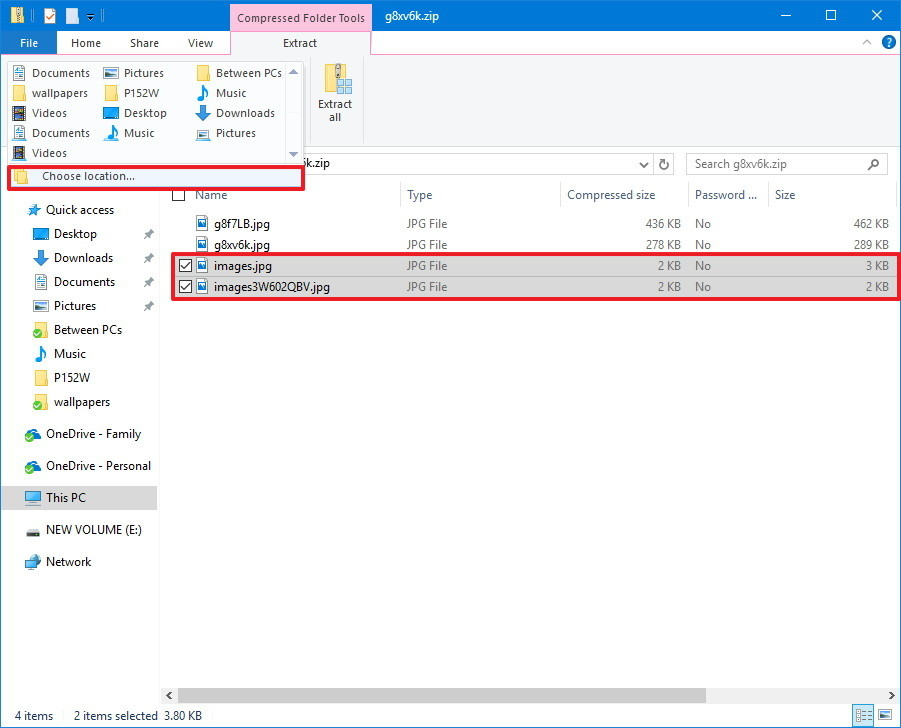
- Select the items you want to extract
- On the Extract tab, select the location where you want to save the extracted files
- If the location isn't listed, click the More button, and then click the Choose location button to find the correct folder.
Installing Java
The search engine uses Javascript to operate. You must have Java installed for this product to function. To download Java:
- Go to http://java.com/download/
- There are instructions there to install Java on your system.
- You may need to restart your computer.
Search Operation
This product is enhanced with a powerful Javascript search engine. All papers have been fully indexed and upon submission of a word or word will be searched for the occurence of that word or words.
The search engine may offer more than one search field. The uppermost field is a generic search and will search all documents in full for the submitted word or words. If other fields appear such as "Title" or "Author," the search may be refined to seek the submitted word(s) in only the field selected.
For example, a search by an author's last name in the generic field will return all references to the name as an author of a paper, wherever the name may be used within the body of a paper, and wherever it may appear in the references section. However, if the author's last name is used in the Author field only, the the search results will only be article's this author has contributed to for this conference.
Filling in words in multiple fields will return documents that find each entered word to be true. For example, a word in the general search field and a word in the Title filed will return documents that have BOTH the general search word within the document AND the Title word in the title.
Wildcard Searches
You can use wildcard characters '*' and '?' in your search terms to search for multiple words and return larger set of results. An asterisk character ('*') in a search term represents any number of characters, while a question mark ('?') represents any single character.This allows you to perform advanced searches such as "zoom*" which would return all pages containing words beginning with "zoom". Similarly, "z??m" would return all pages containing four letter words beginning with 'z' and ending with 'm'. Also, "*car*" would be a search for any words containing the word "car".
Exclusion/negative searches
You can precede a search term with a hyphen character to exclude that search term from being included in your search results. For example, a search for "cat -dog" would return all pages containing the word "cat" but not the word "dog".
Search Results
Search results are listed based on the result's relevant score. The score is derived from matching the words submitted to their placement within the relevant documents. For example, words appearing in titles or keywords receive higher weighting than those found in the general content of the article.
Search Troubleshooting
It may take some time to display your search results depending on:
- Your computer platform
Macintosh users may have to wait up to 30 seconds for your search results to appear. This is due to the functionality of Apple's Java on the Macintosh. - Number of search results returned
It will take longer to search if you search for a common word.
The more specific your search terms, the fewer documents will result.
If you see the "Retrieving Search Results" screen, but never get any search results.
- Make sure JavaScript is enabled
- Make sure you have the latest version of Java installed
- Make sure you have the latest version of Java installed
- Windows: Internet Explorer 6 or newer, Opera 8 or newer or Firefox browser
- Firefox compatibility on Mac may require the latest Mac OS and Java updates.
- Macintosh: Safari 4.0.5 or higher, Firefox 3.6.3 or higher*
- UNIX/Linux: Opera 8 or newer, or a Mozilla-based browser
- Windows: Internet Explorer 6 or newer, Opera 8 or newer or Firefox browser
- Your System Administrator may have security measures in place that limit the search engine on this product.
- You may need administrator privileges to use the search feature.
System Requirements
Windows
- Windows 2000 (Service Pack 2) or newer
- Internet Explorer (version 7 or newer recommended) with Active Content enabled, or Netscape, Mozilla, Firefox, Opera, or any browser able to use Java and JavaScript (the AOL browser is not supported by this product)
- Java 1.4 or newer (if using a web browser other than Internet Explorer)
Macintosh
- Mac OS X 10.3.4 or higher (older versions will not be able to search)
- Safari 4.0.5 or higher, Firefox 3.6.3 or higher*
* Firefox compatibility on Mac may require the latest Mac OS and Java updates. - Java and JavaScript enabled in the web browser
- Java 1.4.1 update 2 or higher
UNIX/Linux
- Basic functions (viewing papers, search) should work under all current versions of UNIX or Linux, provided:
- Netscape, Mozilla, Firefox, Opera, or any browser able to use Java and JavaScript is installed
- Java 1.4 or newer is installed
ALL Systems
- Adobe Reader or later for viewing PDF content
- Other software may be needed to view multimedia files.